Overview
DXChrono can connect to DX clusters, logbooks, contest software, and propagation services. If you bought DXChrono, the app checks your license online when you activate or validate your key. Each integration is configured in Settings and can show data on the map and in widgets.
Integration prerequisites checklist
- License key – If you bought DXChrono, you need a valid license key (see License below). You enter and save the key in the app; you do not set any license server address in Settings.
- Station callsign set – Required for correct filtering (especially PSK Reporter).
- Internet access – Required for license checks, DX Cluster, PSK Reporter, Cloudlog (unless self-hosted on local network), QRZ Logbook API, optional QRZ XML lookups, optional WeatherLink or Weather Underground current conditions, TLE/propagation data, and (if you leave it enabled) the optional software update check to desktop.dxchrono.com.
- N1MM running – Required for N1MM integration; Broadcast Data must be enabled to the configured UDP port.
- Firewall rules – Allow required outbound/inbound traffic for configured hosts and ports.
License (when you bought DXChrono)
The app uses HTTPS to talk to the license service when you Activate or Validate. Each successful activation on a new computer counts as one of the PCs allowed on your key (usually up to five).
First run (no license key yet)
If you have not saved a license key yet, the app opens a dedicated DXChrono license dialog before the main window: paste the key from your purchase email, optionally click Activate to register this computer, then click Continue to save. You cannot close this dialog without saving a key (close the whole app from the window if you need to exit). If you have lost the key, click Lost your key? to open the recovery page in your browser — enter the same email you used when purchasing and the keys are emailed to you.
Later: Settings → License
Press S and open the License tab to change the stored key, turn Validate license when app starts on or off, or use Activate / Validate again. Activate registers this PC with the license service (running it again on the same computer is safe). Validate checks the key without using an extra computer slot. Most keys allow up to five computers; the service enforces that limit. Lost your key? opens the same recovery page as on first run.
DX Cluster
Connect to any telnet DX cluster (e.g. DX Spider, AR Cluster, CC Cluster) to see live spots on the map and in the DX Cluster widget.
- Open Settings (S) → DX Cluster tab.
- Add your first cluster profile under the list: name, host (e.g. dxc.ve7cc.net), port (e.g. 7300), login callsign, and cluster type (DX Spider, AR Cluster, or CC Cluster) if needed, then Add or Update. Use Set primary on the node you want as the main connection.
- For a backup cluster, click New profile, fill in the second host, and click Add. If the primary cannot connect, DXChrono tries the others in list order.
- Enable the DX Cluster widget in the Widgets tab if you want the spots list.
- Select a profile, click Test to verify that endpoint, then Save.
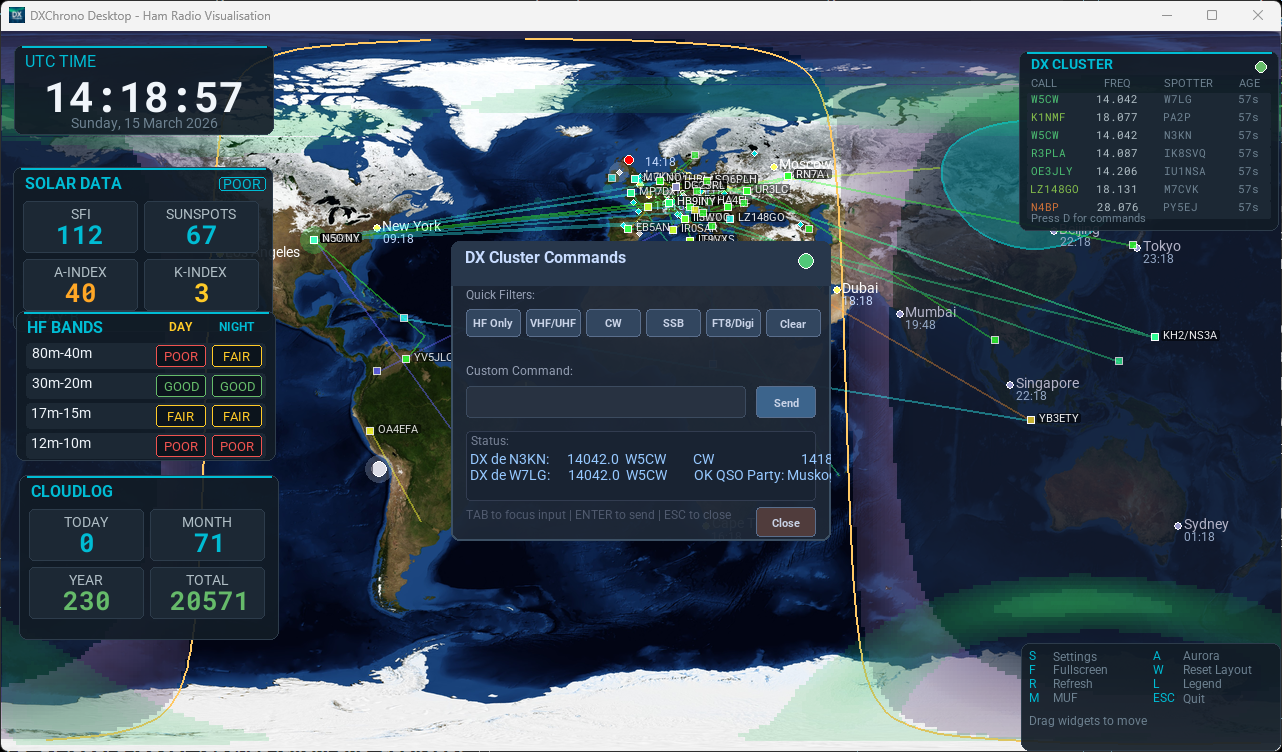
Press D to open the DX Cluster command window and send filter commands (e.g. sh/dx 20). The title area shows which profile is connected (e.g. Connected to VE7CC (dxc.ve7cc.net)) or the current connect/failover status while the link is still coming up. Spots appear on the map with optional labels, great-circle propagation lines, and trail; hover for callsign, frequency, and comment. The DX Cluster widget lists recent spots and shows connection progress when the table is empty—see Map & Widgets → DX Cluster.
Satellite tracking
Show amateur satellites (e.g. ISS, AO-73) and their visibility footprints on the map.
- Open Settings (S) → Sats (Satellites) tab.
- Enable Enable Satellites and optionally Show Footprints / Show Sat Labels.
- Set Footprint Min Elev to tune how large footprints appear (for example, 5 degrees for practical handheld visibility).
- Select which satellites to track from the list (loaded from the TLE URL, e.g. tle.oscarwatch.org).
- Click Save.
Press Y to toggle the satellite overlay on or off.
When Cache TLE on disk (offline) is enabled (default), the last successful TLE download is kept in ~/.dxchrono/satellite_tle_cache.json so satellite tracking still works after a restart if the display has no internet — for example a Raspberry Pi at a field day site. DXChrono loads the disk copy first, then refreshes from your TLE URL when the network is available. If you leave Desktop running with satellites on, it downloads a fresh TLE file about every six hours when the internet is up. If a download fails, it keeps the last file and tries again after a short wait — no restart needed.
The optional Upcoming Passes widget uses the same selected-satellite list and your station location to predict upcoming AOS/LOS windows. You can choose UTC or local times and adjust prediction lookahead in Settings → Sats.
Contest Calendar (WA7BNM RSS)
Show upcoming contest activity from the WA7BNM contest calendar RSS feed in an optional widget.
- Open Settings → Widgets and enable Contest Calendar.
- Open Settings → Contest Calendar to set the RSS refresh interval, lookahead days, and optionally a custom feed URL.
- Adjust widget font and meta font sizes on the Contest Calendar tab if needed, then Save.
When data is fresh, the widget header shows the update time. If a refresh fails, DXChrono keeps the last successful data and marks it as stale so the list remains usable.
Cloudlog
Display QSO statistics and recent contacts from your Cloudlog instance.
- Open Settings → Cloudlog tab.
- Enter your Cloudlog URL (e.g. https://log.example.com).
- Enter your API key (Cloudlog: Admin → API Keys).
- Optionally enter your Public slug for recent QSOs.
- Click Test, enable the Cloudlog widget in Widgets, then Save.
Recent QSOs can be shown on the map with optional lines to your QTH. Map QSOs (days) on the Cloudlog tab (default 2 UTC days) hides older pins so a quiet spell does not leave months-old contacts on the map. Cloudlog data is also used for Special Event mode (last worked, contacts today).
WeatherLink (Davis)
Show current outdoor conditions from your Davis WeatherLink station in a compact on-screen panel (temperature, humidity, wind, pressure, rain today).
- On weatherlink.com/account, click Generate v2 Key and copy the API Key and API Secret.
- Open Settings → WeatherLink.
- Paste the key and secret (you can right-click a field to paste from the clipboard). Keep the secret private.
- Optionally enter a Station ID: the UUID from the browser address bar when you view the station on WeatherLink.com. Leave blank to use the first station the key can see.
- Choose units: temperature (°C/°F), wind (m/s or mph), pressure (hPa, mb, or inHg), and rain (mm or in).
- Click Test, enable Enable WeatherLink, then Save. The WeatherLink panel appears when the feed is enabled (same pattern as Cloudlog).
Polling interval is under Settings → Data → WeatherLink (sec); default is 120 seconds (minimum 60). Choose temperature (°C/°F), wind (m/s or mph), pressure (hPa, mb, or inHg), and rain (mm or in) on the WeatherLink tab — mb and hPa use the same number. Current-conditions access depends on your WeatherLink subscription plan. This integration uses the WeatherLink cloud API only — not the local WeatherLink Live LAN URL.
Weather Underground (PWS)
Show current outdoor conditions from a Weather Underground personal weather station in a separate compact panel (temperature, humidity, wind, pressure, rain today). You can run this alongside WeatherLink if you use both.
- Register an active personal weather station on Weather Underground and note its Station ID (case-sensitive, for example
KMAHANOV10) from My Devices. - Copy your API key from wunderground.com/member/api-keys (free keys are for registered, uploading PWS owners).
- Open Settings → WU (Weather Underground).
- Paste the API key and Station ID (you can right-click a field to paste). Keep the key private.
- Choose units: temperature (°C/°F), wind (m/s or mph), pressure (hPa, mb, or inHg), and rain (mm or in).
- Click Test, enable Enable Weather Underground, then Save. The WU panel appears when the feed is enabled (same pattern as Cloudlog).
Polling interval is under Settings → Data → Weather Underground (sec); default is 120 seconds (minimum 60). Weather Underground only returns an observation from the last 60 minutes — if the station has not reported recently, Test or the panel may show that data has expired.
ADIF Logbook file
Use a local .adi file as your logbook source for DXChrono map markers and a dedicated ADIF Logbook stats/recent panel.
- Open Settings → ADIF tab.
- Enable Enable ADIF Logbook file.
- Set the full path to your logger-exported ADIF file (for example a file updated by your logging software while operating), or use the Browse button in the ADIF tab.
- Set Plot most recent and map options (show on map, labels, lines).
- Set refresh interval under Settings → Data → ADIF Logbook (sec), then Save.
DXChrono reads the file carefully to avoid parse errors while the logger is writing it. If your logger rotates to a new ADIF filename, update the path in Settings.
QRZ Logbook
Show recent QSOs from your QRZ.com logbook on the world map (square markers; optional labels and propagation lines). There is no separate QRZ stats widget—only map display.
- Open Settings → QRZ tab.
- Enter your QRZ Logbook access key (see QRZ’s Logbook API documentation).
- Enable Enable QRZ Logbook and Show QSOs on map as needed.
- Adjust FETCH date span, FETCH max records, and Plot most recent to tune how much log data is requested and how many QSOs are drawn.
- Set the refresh interval under Settings → Data → QRZ Logbook (seconds).
- Click Logbook (STATUS) to verify the key, then Save.
Map positions use gridsquare or ADIF lat/lon when QRZ includes them in the export. For setup detail and terminal debug options, see Settings → QRZ Logbook.
XML lookups (optional): on the same Settings tab you can add your QRZ website login and turn on XML geocoding for DX Cluster, Reverse Beacon, and/or N1MM+. The prefix table (or N1MM gridsquare) is used first; QRZ fills missing pins, and when QRZ returns a gridsquare the map uses that for a finer position. If QRZ is slow or fails, the first result stays. Use the footer XML button to confirm login. This uses QRZ’s XML API and your subscription limits—not the Logbook access key.
N1MM+ UDP
When running alongside N1MM Logger+, DXChrono can show contest/station context, radio band/frequency/mode, and recent QSOs on the map and in an N1MM widget. No Cloudlog required.
- Open Settings → N1MM tab.
- Enable Enable N1MM+ UDP, set UDP Port (default 12060) and Listen Address to
0.0.0.0(all interfaces — recommended on a Raspberry Pi or any remote display). - Enable N1MM Status Panel and N1MM QSO List in the N1MM tab.
- In N1MM: Config → Configure Ports, Mode Control, Audio, Other → Broadcast Data. Tick Contacts (and Radio / Application if you want band and contest context). Use the same port (12060) in the address field on each line you enable.
- Save in DXChrono.
Same PC vs remote display (e.g. Raspberry Pi)
N1MM’s default 127.0.0.1:12060 only reaches programs on the same computer as N1MM. That is why DXChrono on the logging PC works, but a Pi on the network sees nothing until N1MM sends on the LAN.
DXChrono does not use N1MM’s multi-computer contest sync (ports ~12070+) — it only listens for Broadcast Data on port 12060. Other N1MM laptops stay in sync through N1MM networking; your display Pi needs Broadcast Data aimed at the subnet or at the Pi.
On the logging PC, in Broadcast Data, add your subnet broadcast next to 127.0.0.1 (space-separated), for example:
127.0.0.1:12060 192.168.1.255:12060
Use your real subnet: if PCs are 192.168.1.n, the broadcast address is usually 192.168.1.255. See N1MM’s External UDP Messages appendix. If guest Wi‑Fi or AP isolation blocks broadcast, use the Pi’s IP instead (e.g. 192.168.1.50:12060).
In a multi-op network, All computers (next to Contacts) forwards QSOs from every networked N1MM station to the UDP port — enable it on one machine only if you want the Pi to show the full contest log, not just QSOs logged on that PC.
Restarting DXChrono: live UDP only sends new contacts — it does not replay the full N1MM log. With Cache today's QSOs to disk enabled (default), today's UTC contacts are saved to ~/.dxchrono/n1mm_today_qsos.json and restored when you reopen the app (map, QSO list, Special Event banner). The cache clears at the next UTC day. The QSO list maximum setting (default 2000) controls how many of today's contacts the list can hold; scroll the panel when there are more rows than fit on screen. For a full historical logbook use Cloudlog, ADIF, or QRZ Logbook.
PSK Reporter
Show who’s hearing you and who you’re receiving over the public PSK Reporter feed. Spots appear on the map; hover for callsign, frequency, mode, and report. The optional PSK Reporter panel lists the same feeds with an SNR bar per row; see Map & Widgets → PSK Reporter.
- Open Settings → PSK Reporter tab.
- Enable and set Host (e.g. mqtt.pskreporter.info), Port (1883), and optionally Use TLS.
- Choose Show Spot Labels, Show Prop Lines, Show Spot Trail, timeout, and max spots.
- Your callsign (from Station) is used to filter spots. Save.
SpE heatmap (Beta)
Desktop can paint live sporadic-E openings on the map from an SpE server (spe-ingest) that watches PSK Reporter path midpoints. Colours: 10 m cyan, 6 m green, 4 m yellow, 2 m orange; optional purple F-hop is a long-path hint only and cannot tell Es from F2. A colour key in the corner shows which bands are on. This is independent of tropo and aurora.
- Run spe-ingest (or use a host that already does) and check that the heatmap page loads in a browser. For 4 m yellow, the server must subscribe to 4 m PSK spots.
- Open Settings → SpE (Beta) and set Heatmap URL to that host (no extra path), for example
http://127.0.0.1:8095. - Choose bands and whether F-hop is on. Save.
- Press E (or Settings → Display → Show SpE Overlay) and optionally enable the SpE heatmap panel under Widgets.
Reverse Beacon Network
The Reverse Beacon Network publishes automated skimmer spots over telnet. DXChrono connects to telnet.reversebeacon.net (CW/RTTY on port 7000, digital on 7001), filters spots to your Station callsign (or an optional RBN callsign override for testing), and shows each skimmer on the map with a great-circle line from your QTH. The optional widget lists skimmer, frequency, mode, an SNR bar, and age.
- Open Settings → Reverse Beacon Network tab.
- Optionally set RBN call (optional) to log in and filter spots as that call (leave blank to use Station). Map lines still use your Station location.
- Enable, choose feeds (CW/RTTY and/or FT8), and map options (labels, lines, trail) like other live spot sources.
- Enable Reverse Beacon Network status panel on the Widgets tab if you want the table on screen. Save.
Summits on the Air (SOTA)
Show live Summits on the Air spots and upcoming activation alerts from the public SOTA API. Spots appear on the map as triangle markers (optional lines from your QTH); planned alerts use a distinct outline marker once summit coordinates are available from the downloaded summits list. Only alerts planned for today (UTC) are listed and plotted — not tomorrow’s schedule. By default, alert hexagons only appear after you zoom in, so the world view stays clearer — turn on Alerts when zoomed out if you want them at every zoom level.
- Open Settings → SOTA (Summits on the Air) tab.
- Enable SOTA, choose map options (spots, alerts, labels, lines), and set filters if you only want certain regions, associations, modes, or bands.
- Region filter is a continent shortcut (Europe, North America, and so on). It uses the summit association — the letters before the slash in
G/LD-003— not the activator’s callsign. Pick Europe to hide the US-heavy live feed. In Association filter,UKis a shortcut for England, Scotland, Wales, Northern Ireland, the Isle of Man, and the Channel Islands (G,GM,GW,GI,GD,GJ,GU). TypingGalone is England only. - Mode filter treats SSB, USB, LSB, and PHONE as the same voice family. Mode and band filters apply to both spots and alerts (alerts use the free-text frequency line, for example
14.285 SSBor7-ssb). - Leave Cache summits list on (default) so DXChrono can keep a daily copy of the official summits catalogue for alert positions and enrichment. The poll interval is at least 60 seconds so the SOTA servers are not overloaded.
- Save. The SOTA panel appears when the feed is enabled; use the Spots / Alerts buttons on the widget header to switch lists. Double-click a row to open the summit page in your browser.
Activator callsigns (and summit references such as G/LD-003) can also match your Watch List if you add them under Settings → Watch. See Map & Widgets → SOTA for the panel layout.
Parks on the Air (POTA)
Show live Parks on the Air activator spots and scheduled activations from the public POTA API. Spots appear on the map as downward triangle markers (optional lines from your QTH); scheduled activations use diamond markers at the park position (no QTH line) once coordinates are known from a park lookup. By default only activations for today (UTC) are shown (Scheduled look-ahead = 0 in Settings → POTA); raise that value if you want the next few days. By default, scheduled diamonds only appear after you zoom in, so the world view stays clearer — turn on Scheduled when zoomed out if you want them at every zoom level.
- Open Settings → POTA (Parks on the Air) tab.
- Enable POTA, choose map options (spots, scheduled, labels, lines), and set filters if you only want certain regions, programmes, locations, modes, or bands.
- Region filter is a continent shortcut (Europe, North America, and so on). It uses the park programme — the letters before the dash in
GB-0042— not the activator’s callsign, so a US call in a UK park still counts as Europe. Pick Europe to hide the US-heavy live feed. Programme codes are ISO country codes (United Kingdom isGB, Germany isDE, Canada isCA). - Mode filter treats SSB, USB, LSB, and PHONE as the same voice family, so a voice-only list is not emptied when the spot is tagged USB instead of SSB.
- Leave Cache park lookups on (default) so DXChrono can remember park coordinates under
~/.dxchronofor scheduled activations. The poll interval is at least 60 seconds so the POTA servers are not overloaded. - Save. The POTA panel appears when the feed is enabled; use the Spots / Sched buttons on the widget header to switch lists. Double-click a row to open the park page on pota.app in your browser.
Activator callsigns (and park references such as US-0001) can also match your Watch List if you add them under Settings → Watch. See Map & Widgets → POTA for the panel layout.
Special Event Station mode
For event stations, club open days, or visitor displays: scrolling “Last worked” banner, event branding, contacts today, distance, and map legend. You can use Cloudlog or N1MM+ as the data source. See the dedicated Special Event Station Mode page for setup, screenshots, and all options.
Privacy and network notes
- License – Sends HTTPS requests to the DXChrono license service when you use Activate or Validate, and optionally on startup when “validate when app starts” is enabled.
- DX Cluster – Connects to the configured telnet cluster server and receives spot traffic.
- Cloudlog – Calls your configured Cloudlog API endpoints for stats/QSO data.
- QRZ Logbook – Sends HTTPS POST requests to QRZ’s Logbook API (FETCH / STATUS) with your access key.
- QRZ XML (optional) – When enabled for DX Cluster or Reverse Beacon, sends HTTPS GET requests to
xmldata.qrz.comwith your QRZ login to resolve callsigns the prefix table cannot place. - ADIF Logbook file – Reads a local ADIF file from disk on your refresh interval; no cloud/API traffic for this source.
- N1MM+ – Listens for UDP Broadcast Data from N1MM on the configured port (same PC or LAN subnet).
- PSK Reporter – Connects to the configured MQTT broker to receive relevant spot traffic for your callsign.
- Reverse Beacon – Opens telnet sessions to the configured RBN host/ports and receives skimmer spot lines (high volume; DXChrono keeps only spots for your callsign).
- SOTA – Fetches recent spots and alerts from
api-db2.sota.org.ukabout once a minute when enabled, and downloads the official summits list (at most once per day) into~/.dxchronofor summit coordinates. - POTA – Fetches activator spots and scheduled activations from
api.pota.appabout once a minute when enabled, and caches individual park lookups into~/.dxchronofor scheduled activation positions. - Contest Calendar – Fetches the configured RSS feed URL on the refresh interval you set.
- Software update check – If enabled in Settings → Data, DXChrono occasionally fetches a small version file from desktop.dxchrono.com over HTTPS to see whether a newer build is published. No station or license payload is sent with that request. See Settings → Software updates.
If you operate in a restricted network, ask your admin to allow required hosts/ports before setup.