The world map
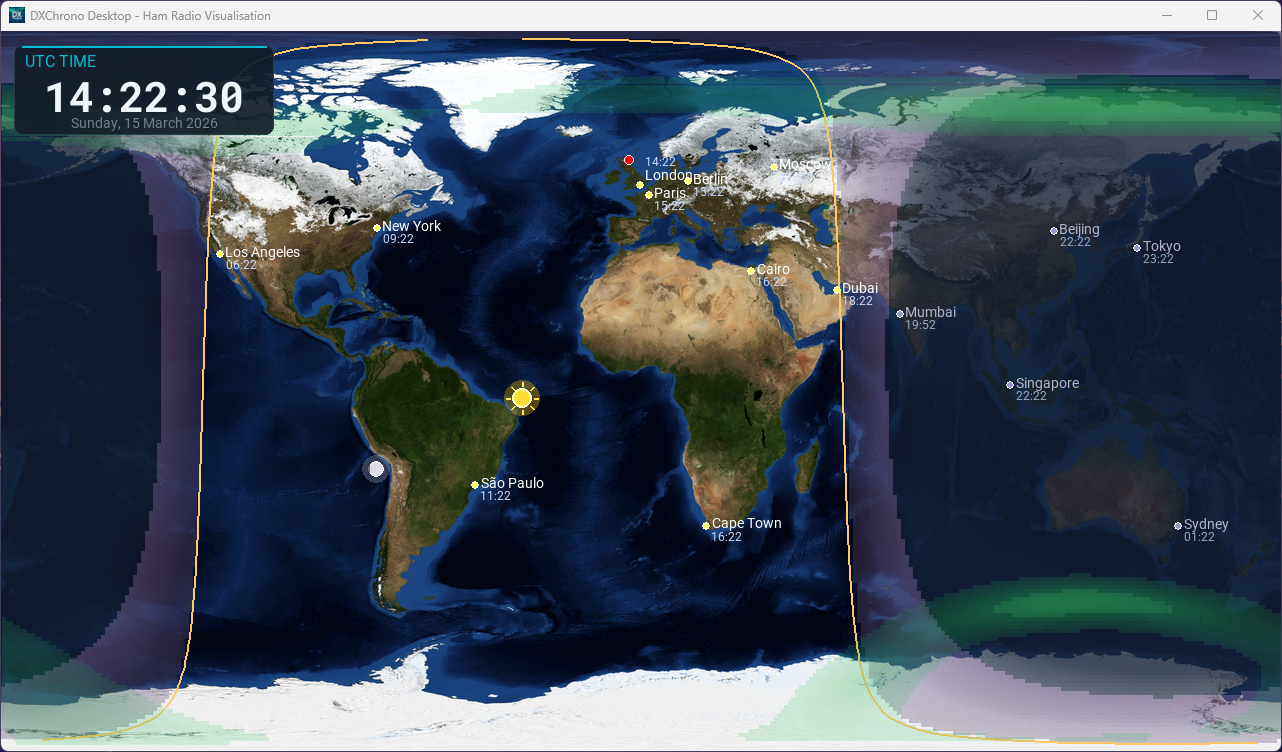
The main display can run as a flat world map or as an interactive 3D globe. Packaged builds include the world picture; if you run from source, the assets folder should hold the 720p, 1080p, and 4K maps (and the large NASA file for zoom). In 2D, the window starts on the size you pick under Settings → Performance → Base map size (or Auto from the window). Zooming in then loads the detailed NASA picture so coastlines stay sharp — that extra picture is dropped again when you return to the full world. Pan and zoom apply only to the map — panels stay put on the screen. Use the mouse wheel over the map to zoom toward the cursor, left-drag or middle-click drag to pan, or double-click empty map (or press Home) to restore the full world. Keyboard zoom and pan work when Settings and About are closed — see Controls. Gestures are ignored over a panel so drag, resize, and scroll still work there. If the globe ever looks like a blue ball with no land, see Troubleshooting → 3D globe looks like a plain blue ball.
It shows:
- Grey line – Where day meets night, with twilight and night-side shading (flat map and 3D globe), updated periodically.
- Your QTH – Red marker at your station location (Settings → Station).
- Cities – Selected cities with local time (toggle in Settings → Display).
- Grid / Gridsquares / CQ / ITU – Optional overlays (Settings → Display). Gridsquares show larger 2-character fields first (for example
JO) and switch to 4-character squares (for exampleJO00) only at deeper zoom for readability. - Aurora – Greens and yellows show where NOAA expects aurora activity (Ovation forecast). Press A or turn it on under Display. It stays lined up with the map when you zoom or pan. DXChrono tries NOAA first; if that feed fails, it uses the DXChrono aurora proxy.
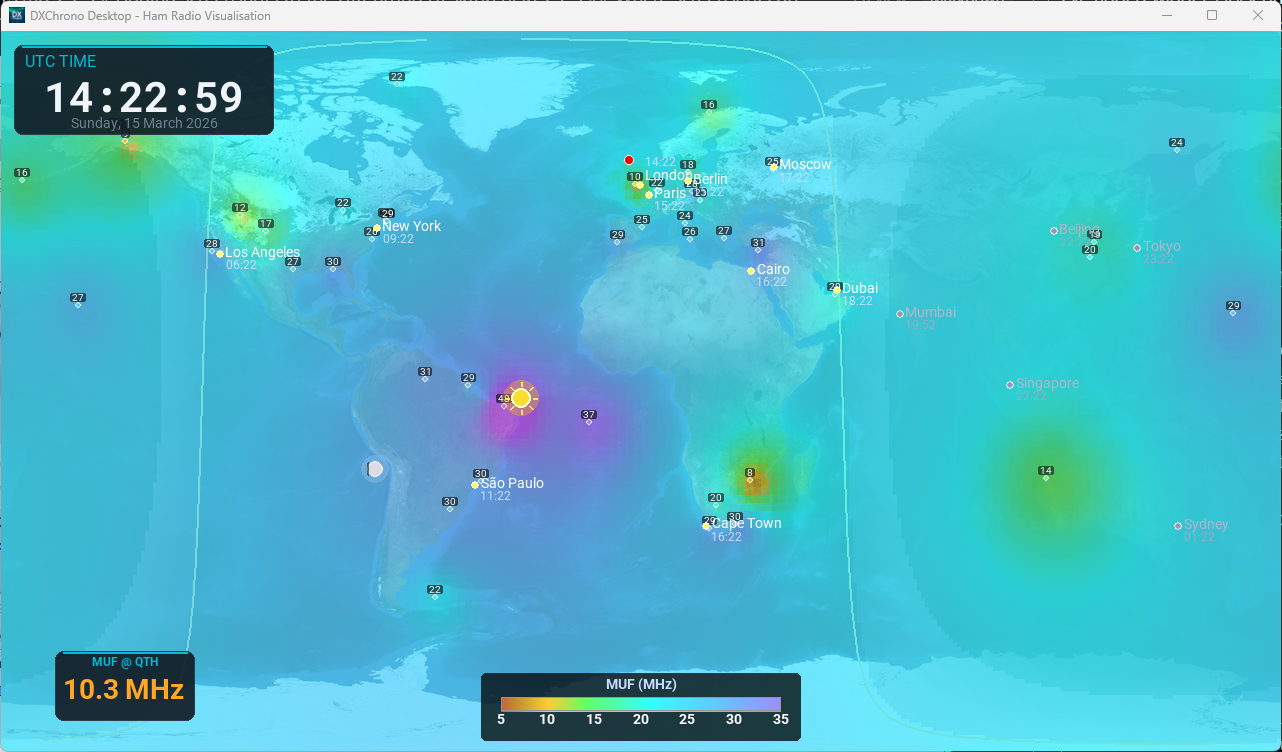
- MUF – Estimated maximum usable frequency by area, with a colour legend. Press M. It stays lined up with the map when you zoom or pan.
- Tropo – Worldwide tropospheric refractive-index forecast from F5LEN (current 3-hour slot). Press T or turn it on under Display. Colours follow the same scale as tropo.f5len.org; the overlay stays lined up when you zoom or pan. While the overlay is on, the app checks for a newer forecast about every 15 minutes, and again just after :15 each UTC hour in case a fresh file has landed. Aurora and tropo cannot both be on at once (keeps the map light on a Pi). With thanks to Pascal Grandjean, F5LEN, for permission to use this forecast (tropo.f5len.org/WW).
- SpE heatmap (Beta) – Live sporadic-E openings as colour washes: cyan 10 m, green 6 m, yellow 4 m, orange 2 m, optional purple F-hop. A colour key in the corner matches those colours. Press E or turn it on under Display. It stays lined up when you zoom or pan, and can sit with tropo or aurora. Use the optional SpE panel to pick bands. Set the server under Settings → SpE (Beta). See Integrations → SpE heatmap.
- Satellites – Optional markers and coverage areas for the satellites you track (see Integrations → Satellite tracking). Press Y to show or hide them; they stay lined up with the map when you zoom or pan.
- Sun & moon – Positions on the map (optional in Display).
When DX Cluster, Cloudlog, QRZ Logbook, PSK Reporter, Reverse Beacon, SOTA, POTA, or N1MM are enabled, their spots or QSOs appear as markers (and optional great-circle propagation lines). New DX Cluster, PSK Reporter, and Reverse Beacon lines draw in over about two seconds on both 2D and 3D. Live feed lines already on the map stay there until they age out (spot timeout) or the feed trims them (max spots); a new batch of spots does not redraw every existing line. If several feeds update at almost the same time, the first change shows at once and the rest are grouped so the map does not flicker through each batch. Line thickness is adjustable under Settings → Display → Propagation Line Width using the − and + buttons (1 is the default minimum; higher values thicken all propagation arcs). Cloudlog QSOs use diamond markers; QRZ Logbook uses squares. RBN skimmers use pentagon markers at the skimmer location. SOTA activations use upward triangle markers; planned SOTA alerts use outlined hexagons. POTA spots use downward triangles; scheduled POTA activations use diamond markers (no QTH line). Hover over a marker for a tooltip with details. QRZ pins need a gridsquare or coordinates in the returned log data—see Settings → QRZ Logbook.
Map hover now supports both markers and great-circle propagation lines: moving over a line highlights it, and tooltips include the source feed (for example DX Spot, N1MM, PSK Reporter, or Reverse Beacon).
Widgets
Widgets are draggable panels. Drag by the title bar to move them; the map holds still until you release so the panel stays smooth. Positions are saved per mode (windowed/fullscreen). Use W to reset all positions to default. Toggle visibility in Settings → Widgets and integration-specific tabs.
Panel behaviour notes
- Saved layouts – Widget positions are stored separately for windowed and fullscreen modes.
- Many panels at once – Turning on a lot of widgets no longer stacks them off the bottom of the screen or hides one behind another. Extra columns wrap along the edge, and a buried title bar is moved so you can still drag it. Press W if you want the default arrangement again.
- Reset key – Press W to clear saved positions and return to defaults.
- DX Cluster widget – The DX Cluster panel supports resize from the lower-left grip and mouse-wheel scrolling through older spots.
- PSK Reporter widget – Same pattern: resize from the lower-left grip; mouse wheel over the panel scrolls the spot list when there are more rows than fit.
- Reverse Beacon Network widget – Same pattern as PSK Reporter: resize grip and wheel scrolling; stacked above the PSK panel when both are visible.
- Upcoming Passes widget – Scrollable and resizable; row font size is configurable in Settings → Sats.
- Upcoming Contests widget – Scrollable and resizable; main and metadata font sizes are configurable in Settings → Contest Calendar. Includes a right-side scrollbar (wheel, track click, and thumb drag).
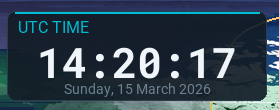
Clock
Large UTC time and date – essential for coordination and logging.
Solar indices
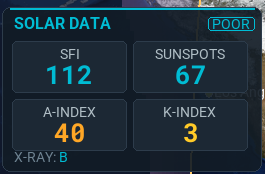
Solar flux (SFI), A-index, K-index, sunspot number, and X-ray from NOAA. Indicates propagation conditions. Optional K-index 48h sparkline (Settings → Widgets, off by default) adds a thin strip of planetary K for the last two days under the numbers — the panel stays the same size unless you turn that on.
Band conditions
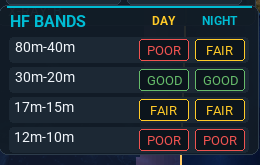
HF bands with day and night status (Good / Fair / Poor). With live DXChrono HF conditions (on by default) the panel includes 160 m plus the usual 80–10 m groups, and the footer shows DXChrono HF. The classic path stays 80 m–10 m only. Solar Data uses the same live feed when it is on.
VHF conditions
Optional panel for VHF aurora and E-skip openings from the same solar feed as HF bands. Rows cover northern-hemisphere aurora, E-skip in Europe and North America, and Europe 6 m / 4 m. There is no day/night split — each row has a single status (for example Closed, or an opening such as 50 MHz ES).
Use All, EU, or NA on the panel (or Settings → Widgets → VHF Region) so a European shack can hide North America E-skip and a North American shack can hide Europe, including 4 m. Aurora stays visible in both region views. Off by default; turn it on under Settings → Widgets.
SpE heatmap (Beta)
Optional panel for the live sporadic-E overlay. Buttons choose 10m (cyan), 6m (green), 4m (yellow), 2m (orange), and F-hop (purple long-path hint). Map turns the overlay on or off (same as E). The panel also shows whether the feed is connected. Off by default; enable it under Settings → Widgets. Set your SpE server URL on Settings → SpE (Beta).
Sun/Moon Az-El
Optional panel with real-time azimuth (AZ) and elevation (EL) for the Sun and Moon at your QTH. Values are calculated from your station location in Settings → Station (latitude/longitude or grid square).
Station info
Your callsign and grid (or location) for quick reference.
Help / Legend
On-screen shortcut legend. Toggle with L.
Cloudlog
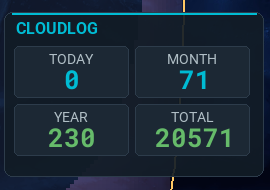
QSO statistics (today, month, year, total) and recent QSOs when Cloudlog is configured and enabled.
WeatherLink
Optional glance panel for a Davis WeatherLink station: outdoor temperature, humidity, wind (with direction), pressure (with trend arrow when available), and rain today. Temperature turns a brighter cyan at or below freezing, orange from about 25 °C, and red from about 30 °C. Wind turns orange from about 25 mph and red from about 40 mph (gust if higher). Units are chosen separately under Settings → WeatherLink (temperature, wind, pressure, rain). Off by default; turn the feed on under Settings → WeatherLink (API key and secret from weatherlink.com). See Integrations → WeatherLink.
Weather Underground
Separate glance panel for a Weather Underground personal weather station (title WU): same fields and alert colours as WeatherLink. Units are under Settings → WU. Off by default; turn the feed on under Settings → WU (API key and case-sensitive station ID from wunderground.com). You can show WeatherLink and WU at the same time. See Integrations → Weather Underground.
ADIF Logbook
When ADIF file mode is enabled, a dedicated ADIF Logbook widget shows the same style of recent/log summary cards using your local .adi file as the source.
DX Cluster
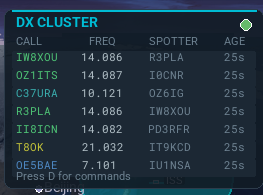
Live list of DX spots from the connected cluster. Spots can be shown on the map with optional great-circle propagation lines. The title-bar dot is green when connected, orange while connecting, failing over to a backup profile, or waiting to retry, and red when disconnected. The AGE column uses whole minutes (0m, 1m, 2m…); a new spot still appears as soon as it arrives.
When there are no spots yet (or the link is still coming up), the panel shows a short status line instead of an empty table—for example Connecting to …, Failover: trying …, Logging in to …, or Connected — waiting for spots. With multiple profiles in Settings, failover messages name the profile being tried.
PSK Reporter
When PSK Reporter is enabled in Settings, this panel shows MQTT connection status (indicator dot in the title bar) and a scrollable table of recent spots for your callsign. The title shows HEARD ME or I HEAR depending on the spot list mode you chose in Settings → PSK Reporter.
- Columns – Callsign, frequency, mode, SNR (a compact horizontal bar from the spot’s report field), and age in whole minutes (0m, 1m, 2m…). The bar is a quick visual for signal quality; it does not show a numeric decibel readout in the table. If the widget is too narrow, the SNR column is hidden so call and mode stay readable.
- SNR meaning – For HEARD ME, the bar reflects how the other station reported receiving you. For I HEAR, it reflects the SNR value carried with that spot. If no report is present, the bar stays empty.
- SNR bar colours – The rounded dark grey track is the empty scale (no fill). The coloured fill grows with SNR (roughly −30 dB at the low end to about +6 dB for a full bar; values outside that range are clamped). 0 dB is shown well into the “good” range (not as marginal). Weaker signals use a warmer tint (orange toward red); stronger signals shift to green. Row age still fades the whole row, including the bar.
- Band filter – The cyan note under the section title shows which bands are included (or “All bands”). Filters are set in Settings → PSK Reporter.
- Map tooltips – Hover a PSK Reporter marker on the map for full detail, including decibel values where available.

Enable the panel under Settings → Widgets. Feeds and map behaviour are configured under Settings → PSK Reporter and Integrations → PSK Reporter.
Reverse Beacon Network
When Reverse Beacon Network is enabled in Settings, this panel shows telnet connection status (indicator dot in the title bar) and a scrollable table of recent skimmer spots for your Station callsign (or optional RBN callsign override). Columns are skimmer, frequency, mode, SNR (same bar style as the PSK Reporter widget), and age in whole minutes. Band filtering and font size are under Settings → Reverse Beacon Network.
Enable the panel under Settings → Widgets. Setup and privacy notes are under Integrations → Reverse Beacon Network.
SOTA
When Summits on the Air is enabled in Settings, this panel lists recent activation spots or upcoming alerts. Use the Spots / Alerts buttons in the title bar to switch. Spot rows show activator, summit reference, frequency, mode, and age in whole minutes; alert rows show planned time. Double-click a row to open the summit on Sotl.as in your browser. Triangle markers on the map are live spots; outlined hexagons are planned alerts (when summit coordinates are known). Alert hexagons stay hidden on the zoomed-out world view unless you enable Alerts when zoomed out in Settings → SOTA.
Setup and filters are under Settings → SOTA and Integrations → SOTA. Use Region filter for Europe-only (or another continent), or type UK in Association filter for all UK associations; filters follow the summit, not the callsign, and apply to both spots and alerts.
POTA
When Parks on the Air is enabled in Settings, this panel lists recent activator spots or scheduled activations. Use the Spots / Sched buttons in the title bar to switch. Spot rows show activator, park reference, frequency, mode, and age in whole minutes; scheduled rows show planned start time. Double-click a row to open the park on pota.app in your browser. Downward triangle markers on the map are live spots; diamonds are scheduled activations (when park coordinates are known). Scheduled diamonds stay hidden on the zoomed-out world view unless you enable Scheduled when zoomed out in Settings → POTA.
Setup and filters are under Settings → POTA and Integrations → POTA. Use Region filter for Europe-only (or another continent) without listing every programme code; it follows the park, not the callsign.
MUF
MUF at-QTH panel shown when MUF overlay is enabled (M).
N1MM status & recent QSOs
When N1MM+ UDP is enabled: contest name and one line per station with current frequency, mode, and run/S&P (multi-op setups show every station that sends Radio broadcast data). Plus a resizable list of recent QSOs (font size on Settings → N1MM). Recent N1MM QSOs also appear on the map.
Upcoming Passes
Scrollable list of predicted satellite passes from your selected satellites and station location. Shows AOS/LOS, MAX as peak elevation in degrees, TRK as three compass points for the pass arc at AOS, peak, and LOS (for example W-N-E), and live ETA/countdown. Active passes are highlighted for the full pass duration.
Upcoming Contests
Scrollable WA7BNM contest schedule panel sourced from the contestcalendar RSS feed. Rows show contest name, time window, and live status/countdown. In-progress contests are highlighted. Countdowns are shown in days/hours/minutes for longer windows. If feed refresh fails temporarily, last good data is kept and marked as stale.
Special event
When Special Event mode is on: event name and dates, scrolling “Last worked” banner, contacts today, distance to last QSO, and optional legend.