What is Special Event Station mode?
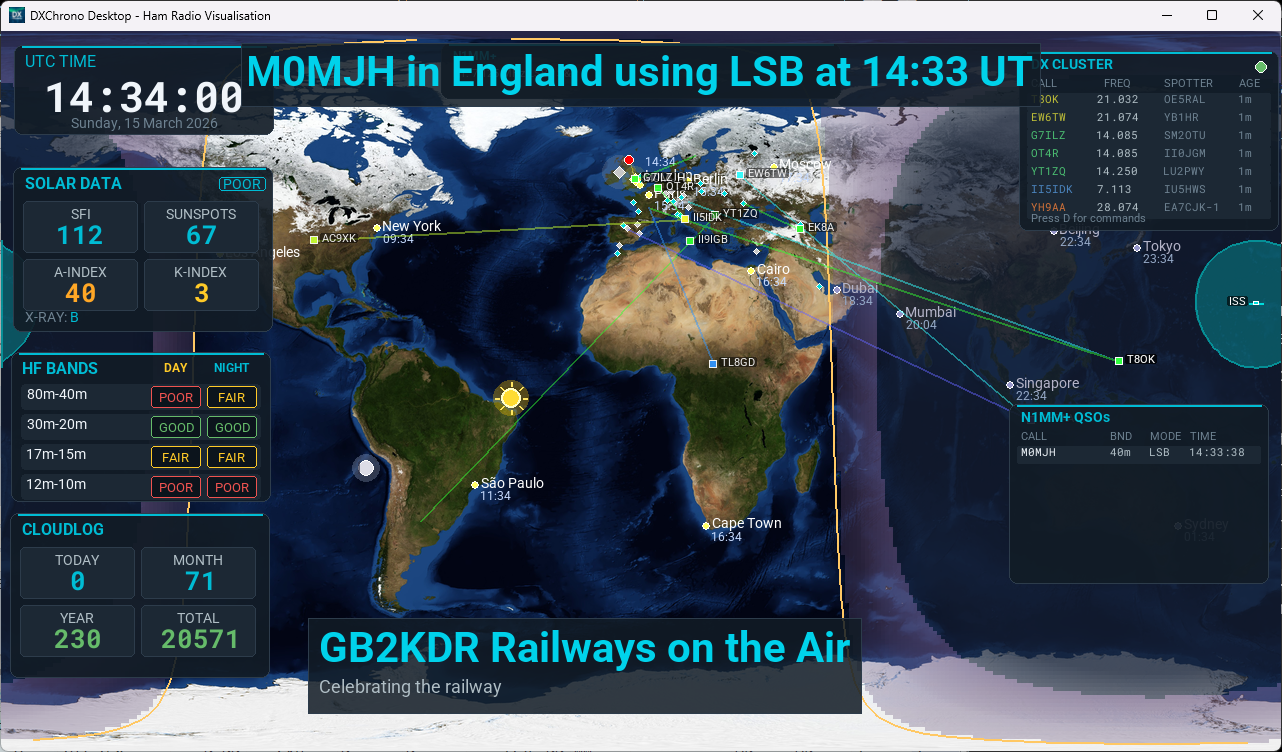
Special Event mode turns DXChrono into a public-friendly display for event stations, club open days, field days, or visitor centres. One large screen shows the world map, propagation, and who you just worked – so visitors and the public can see live contacts from around the world.
On-screen display
When Special Event mode is enabled you get:
- Scrolling “Last worked” banner – e.g. “Last worked: G4ABC in England on 20m using FT8 at 14:32 UTC” across the top or bottom.
- Event branding – Event name, dates, and optional tagline (e.g. “XYZ Special Event · 1–2 March 2026”).
- Contacts today – Count of QSOs today from Cloudlog or today’s N1MM contacts (when that source is selected).
- Distance – Optional “About X miles” to the last worked station.
- Map legend – Short on-screen legend for lines and markers.
- Map – Today’s contacts from the chosen source, with a line to your QTH. The latest has a larger, pulsing marker. Portable slash calls (for example OH/SM4XXX) plot in the country you are visiting. If the source is Cloudlog, today’s lines stay on even when Show QSO Lines is off in Settings.
Data source: Cloudlog or N1MM+
You choose where the last-worked and map QSO data comes from:
- Cloudlog – Use your Cloudlog logbook. Configure Cloudlog in Settings → Cloudlog and set Last Worked / Banner Data From → Cloudlog.
- N1MM+ – Use N1MM Logger+ over UDP. Enable N1MM in Settings → N1MM and set Last Worked / Banner Data From → N1MM+. The map then shows only those N1MM contacts (with a line to your QTH), not Cloudlog or QRZ Logbook pins. Country names come from the built-in country file. If DXChrono runs on a Raspberry Pi while N1MM is on another PC, configure N1MM Broadcast Data with subnet broadcast (see Integrations → N1MM+ UDP).
Settings
Open Settings (S) → Special Event tab to enable the mode and set options:
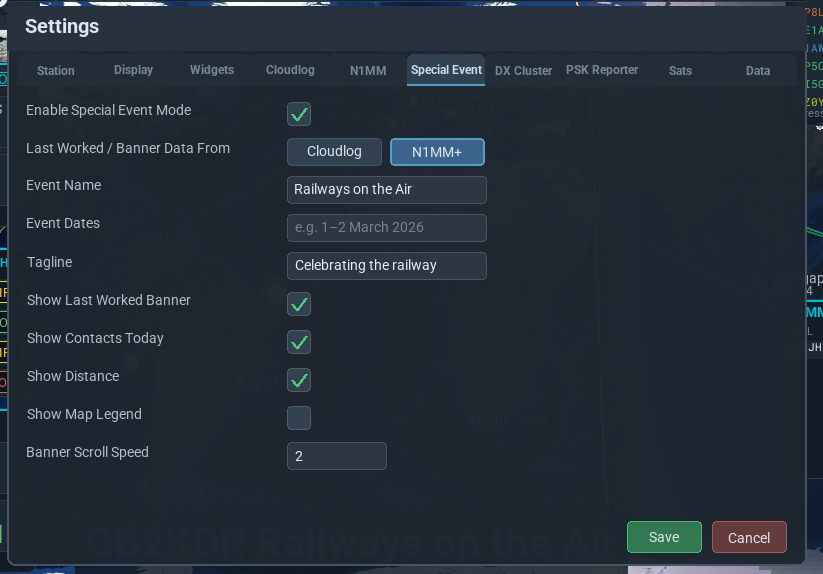
- Enable Special Event Mode – Turn the mode on.
- Last Worked / Banner Data From – Cloudlog or N1MM+.
- Event Name – e.g. “XYZ Special Event”.
- Event Dates – e.g. “1–2 March 2026”.
- Tagline – Optional line under the title (e.g. “Live contacts from around the world”).
- Show Last Worked Banner – Scrolling “Last worked…” line.
- Show Contacts Today – Contact count for today.
- Show Distance – Distance to last QSO.
- Show Map Legend – On-screen legend for map symbols.
- Banner Scroll Speed – How fast the banner scrolls (1–10).
Widgets (banner, branding, legend) can be dragged like other panels; positions are saved. Configure your chosen data source in Integrations (Cloudlog or N1MM+), then click Save.
Smooth banner on a Raspberry Pi
The scrolling banner does not need the internet. For the smoothest scroll during an event, keep the display load light: grey-line updates are deferred while the banner is on; N1MM propagation lines on the map are skipped during scroll (markers still show). With satellites on, footprints refresh about every 2 seconds (Settings → Sats) — still heavier than a bare map. For a visitor display, leave satellites off during Special Event mode if the Pi feels busy.